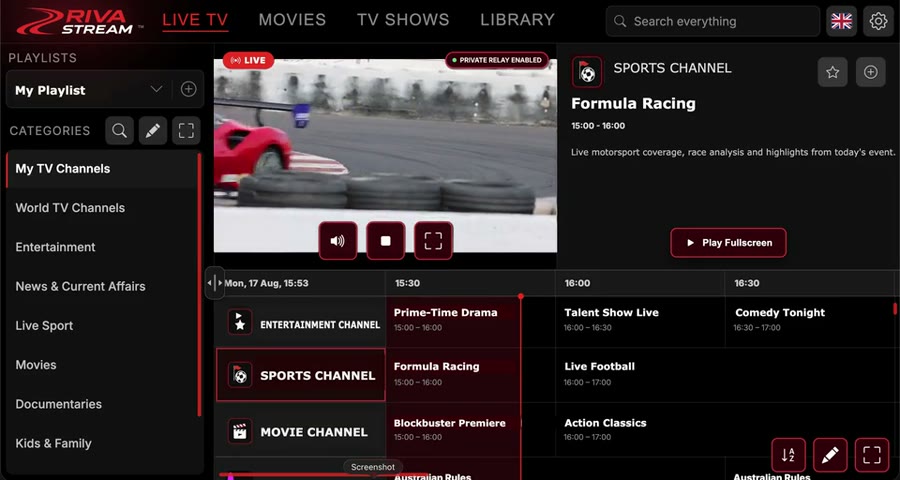
Looking for a Tesla IPTV player? Riva Stream is browser-based player software for your own IPTV playlists. Open it in a compatible Tesla browser to browse live channels and programme information, then play a stream while your vehicle is parked. There is no app to install in the car.
Before you start
- A parked Tesla with a compatible web browser. Browser and video support can vary with the vehicle's hardware, software and region.
- A reliable internet connection. Use an available Wi-Fi network or mobile hotspot, or your vehicle's cellular connection where browser access is supported.
- Your own authorised IPTV source. Have an M3U playlist URL or Xtream server URL, username and password ready. Riva Stream does not supply channels or an IPTV subscription.
- A Riva Stream account. You can create a free account on your phone or computer first. Keep your phone nearby for email verification and the car's QR sign-in flow.
Tesla Premium Connectivity and Riva Stream Premium are separate products. Tesla's connectivity requirements vary; check Tesla's connectivity guidance for your vehicle. Riva Stream Premium adds player features such as private relay and stream conversion; it does not pay for your internet connection or media source.
Set up IPTV in your Tesla
Create your account
Sign up free and complete the email verification steps. Using your phone or computer makes the initial setup easier.
Open Riva Stream in the car
With the Tesla parked, open its web browser and visit rivastream.com. Select Sign In. If the car shows a QR code, scan it with your phone and follow the prompts to sign in to the same Riva Stream account. Bookmark the site for your next visit.
Add your playlist
Select Add Playlist, or open Settings → Playlists → Add Playlist. Choose the Live TV tab and give the playlist a name.
- Xtream: enter the server URL, username and password supplied by your media provider.
- M3U: paste the complete playlist URL into the URL field. Riva Stream detects the playlist type from the details you enter.
Use the phone button beside a field (Send from Phone) to transfer long URLs without typing them on the car screen. Select Save Playlist and wait for it to load.
Choose a channel and play
Open Live TV, choose your playlist and a category, then select a channel. Programme information appears when your source provides it and your plan supports it. Use the player's fullscreen control when available. Keep the vehicle parked throughout video playback.
Start by checking one stream. A free account lets you get started, but playback depends on the stream format and the source's browser restrictions. Streams that need Riva's private relay or conversion require Premium. Review the current Premium features before upgrading.
If your playlist or video will not play
- The playlist does not load
- Check the full URL and credentials, including the server's port if one was provided. Confirm that your source is active and your connection works. Try the same playlist on your phone to help separate a source issue from a car-browser issue.
- The channel buffers or stops
- Try another channel, then compare Wi-Fi, hotspot or available cellular connectivity. A lower-quality stream from your source may work better on a weak connection. Your provider's simultaneous-stream limits can also affect playback.
- There is no picture or no sound
- Some source formats do not play directly in the Tesla browser. Premium conversion can help with incompatible formats, subject to plan limits. It cannot fix an expired subscription, unavailable source or provider access restriction.
- Sign-in or fullscreen is interrupted
- Return to Riva Stream in the car browser and try again while parked. If a QR sign-in session expires, request a fresh code. Fullscreen availability depends on the Tesla browser and vehicle software.
Still stuck? Email support@rivastream.com with your Tesla model, software version and the error shown. Do not include passwords or playlist URLs containing credentials.
Common questions about IPTV in Tesla
Does Riva Stream include TV channels?
No. It is player software. You bring a playlist or media source you are authorised to access. A Riva Stream subscription buys software features only.
Can I watch while charging?
You can use Riva Stream during a charging stop while the car is parked, provided the browser, internet connection and your media source support playback.
Do I need Tesla Premium Connectivity?
Not necessarily when using Wi-Fi or a mobile hotspot on a compatible vehicle. Cellular access and feature availability depend on Tesla's connectivity offering and your vehicle. Check the Tesla guidance linked above.
Does it work in every Tesla?
Compatibility depends on the vehicle's browser, hardware and software, as well as the stream itself. Check Supported Cars on the Riva Stream homepage and test your own source in the car before choosing a paid plan.
Can I use the same account on my phone?
Riva Stream also works in compatible mobile and desktop browsers. Sign in with the same account; your source provider's device and simultaneous-stream limits still apply.
Ready for your next charging break?
Create your Riva Stream account, bring your own playlist and follow the steps above in your parked Tesla.
Riva Stream is independent software and is not affiliated with or endorsed by Tesla, Inc. Tesla is a trademark of its respective owner.